
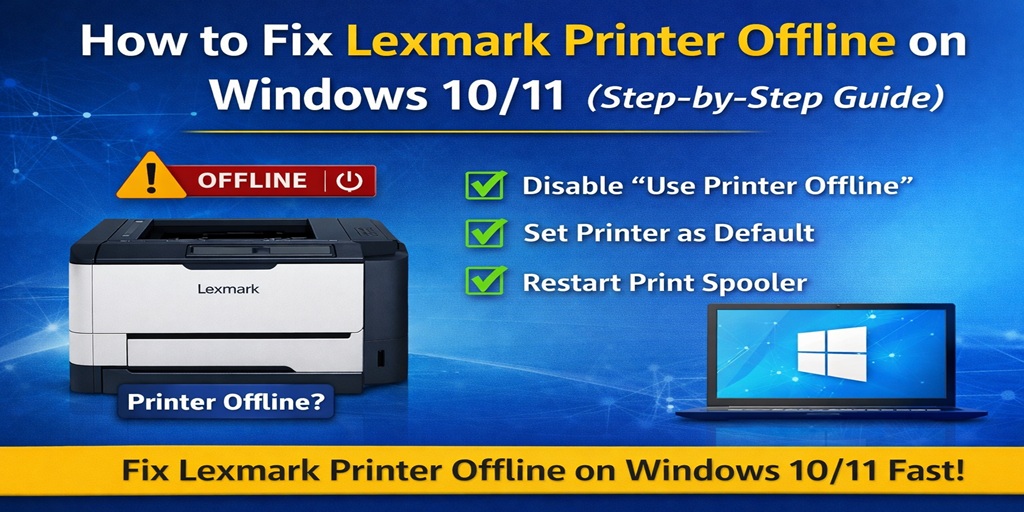
If your Lexmark printer shows offline on Windows 10 or Windows 11, you’re not alone. It’s one of those issues that pops up suddenly, especially after a system update or small settings change.
Table of Contents
ToggleYou click print… nothing happens.
The printer is ON, connected, but Windows insists it’s offline.
In most cases, this isn’t a serious issue. It’s usually caused by:
- A Windows setting (like offline mode)
- Printer not set as default
- Update-related glitches
- Communication errors between system and printer
Let’s fix it step by step.
Why Is My Lexmark Printer Offline on Windows 10 or 11?
Before jumping into fixes, it helps to understand what’s causing it.
Common Reasons:
- “Use Printer Offline” mode is enabled
- Printer is not set as default
- Windows update reset printer settings
- Print spooler stopped working
- Driver conflicts after update
- Incorrect port configuration
👉 Windows 11 users often face this right after updates.
⚡ Quick Fix (Try This First – 2 Minutes)
If you’re in a hurry, do this:
- Restart your printer
- Restart your computer
- Open printer settings → Set as default
- Disable “Use Printer Offline”
👉 This solves most basic issues instantly.
🛠️ Step-by-Step: How to Fix Lexmark Printer Offline on Windows 10/11
Follow these methods in order.
✅ Step 1: Disable “Use Printer Offline” (Most Important Fix)
This setting is the #1 cause.
Steps:
- Open Control Panel
- Click Devices and Printers
- Right-click your Lexmark printer
- Click See what’s printing
- In the top menu, click Printer
- Uncheck:
- ✔ Use Printer Offline
- ✔ Pause Printing
👉 Once unchecked, your printer should come online instantly.
✅ Step 2: Set Lexmark Printer as Default
If your printer isn’t default, Windows may send jobs elsewhere.
Steps:
- Go to Settings → Devices → Printers & Scanners
- Select your Lexmark printer
- Click Manage
- Click Set as Default
👉 Always keep your main printer as default.
✅ Step 3: Restart Print Spooler
The spooler handles all print jobs. If it’s stuck, your printer appears offline.
Steps:
- Press Win + R
- Type: services.msc
- Find Print Spooler
- Right-click → Click:
- Stop
- Start
👉 This clears system-level errors instantly.
✅ Step 4: Clear Print Queue
A stuck job can freeze the printer.
Steps:
- Open printer queue
- Cancel all pending jobs
- Restart spooler again
✅ Step 5: Check Printer Connection
- If USB → check cable
- If WiFi → ensure same network
- Restart router if needed
Why Is My Lexmark Printer Offline on Windows 11 After an Update?
This is a very common issue.
What happens after updates?
- Drivers may become incompatible
- Printer settings reset
- Default printer changes
- Port settings get modified
Fix After Windows Update:
✔ Reinstall printer drivers
✔ Reset default printer
✔ Reconfigure port (TCP/IP recommended)
✔ Restart spooler
👉 Updates often break small configurations, not the printer itself.
🧠 Windows 10 vs Windows 11 Differences
Windows 10:
- More stable with printer settings
- Fewer update-related issues
Windows 11:
- More frequent reset of settings
- More dependency on drivers
- Slight UI changes
🔧 Advanced Fix (If Problem Still Exists)
If basic fixes don’t work, try this:
Switch to TCP/IP Port
- Control Panel → Devices and Printers
- Right-click printer → Properties
- Go to Ports tab
- Add Standard TCP/IP Port
- Enter printer IP
👉 This avoids unstable WSD connections.
📋 Quick Checklist (Save This)
✔ Disable offline mode
✔ Set printer as default
✔ Restart spooler
✔ Clear queue
✔ Check connection
✔ Fix after update
❓ FAQs (People Also Ask Style)
1. Why is my Lexmark printer offline on Windows 10?
Usually due to offline mode enabled, spooler issues, or connection problems.
2. How do I fix printer offline in Windows 11?
Disable offline mode, set as default printer, restart spooler, and update drivers.
3. What does “Use Printer Offline” mean?
It forces Windows to stop sending jobs to the printer.
4. Can Windows updates cause printer offline issues?
Yes, updates can reset settings or cause driver conflicts.
5. Should I reinstall my printer?
Only if basic fixes fail.
6. Why is my printer not set as default automatically?
Windows sometimes switches printers based on recent usage.
7. What is the fastest fix?
Disable offline mode and restart spooler.
Conclusion
If your Lexmark printer is offline on Windows 10 or 11, don’t panic. It’s almost always a settings or system issue, not hardware.
Start with:
- Disabling offline mode
- Setting default printer
- Restarting spooler
Then move to advanced fixes if needed.
Once configured properly, your printer should stay online without repeated issues.
Still stuck?
Try reinstalling drivers or switching to TCP/IP port. If you want, tell me your Lexmark model and I’ll guide you step by step.







