
HP DeskJet Offline Fix (Windows 10/11 & WiFi Solutions)
If your HP DeskJet offline error keeps appearing, you’re not alone. It’s one of the most common printer problems for home users and small offices. The printer is powered on. The WiFi light is solid. But Windows says “Offline.” Nothing prints.
This guide from Printer Offline Fix explains exactly why it happens and how to fix it permanently on Windows 10 and Windows 11.
Why Is My HP DeskJet Offline?
HP DeskJet offline errors are usually caused by dynamic IP address changes, incorrect port configuration (WSD instead of TCP/IP), outdated drivers, Windows updates, weak WiFi signal, or print spooler issues. Fixing the IP and port settings permanently resolves most recurring offline problems.
Now let’s go step by step.
What Causes HP DeskJet Offline Error?
Most people assume the printer is broken. In reality, the issue is communication between your computer and the printer.
Here are the most common causes:
- Dynamic IP address changes
- WSD port configuration
- Outdated or corrupted drivers
- Windows 10 or Windows 11 updates
- Weak WiFi signal
- Printer sleep mode
- Print Spooler service errors
If even one of these is misconfigured, your HP DeskJet may show offline.
HP DeskJet Offline But Connected to WiFi
This is the most confusing situation.
Your printer display shows WiFi connected. Router is working. Internet is fine. Yet Windows still shows “Offline.”
What’s happening?
Your router automatically assigns IP addresses. If the printer restarts or the router refreshes, the printer may receive a new IP address. Windows continues looking for the old one.
The printer is connected — but your computer is communicating with the wrong address.
Permanent Solution:
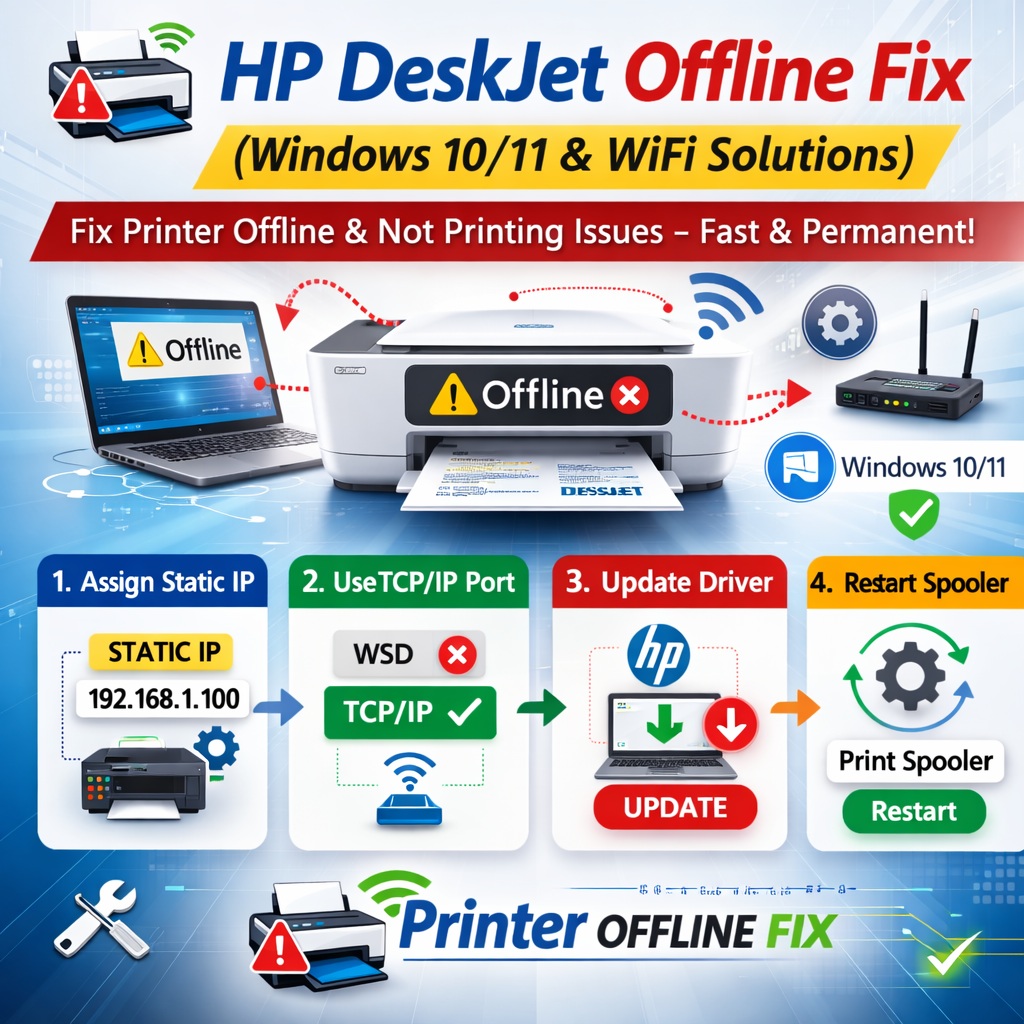
Assign a static IP address and configure the printer using a Standard TCP/IP port instead of WSD.
This single change fixes most recurring HP DeskJet offline errors.
HP DeskJet Offline Fix for Windows 10
If you’re facing HP DeskJet offline Windows 10, follow these steps:
Step 1: Disable “Use Printer Offline”
- Open Control Panel
- Click Devices and Printers
- Right-click HP DeskJet
- Click “See what’s printing”
- Click Printer
- Uncheck “Use Printer Offline”
If it still shows offline, continue.
Step 2: Restart Print Spooler
- Press Windows + R
- Type services.msc
- Find Print Spooler
- Right-click → Restart
Set Startup Type to Automatic.
Spooler crashes can silently trigger offline errors.
Step 3: Switch to Standard TCP/IP Port
- Open Printer Properties
- Go to Ports tab
- Add Port → Standard TCP/IP
- Enter printer’s IP address
Avoid WSD ports. They frequently cause HP DeskJet offline issues.
Step 4: Reinstall HP DeskJet Driver
After Windows updates, drivers may become incompatible.
Download the latest HP DeskJet driver from the official HP support website and reinstall it.
HP DeskJet Offline Fix for Windows 11
Windows 11 handles network security differently than Windows 10.
If your HP DeskJet went offline after upgrading:
- Remove the printer from Settings
- Reinstall using manual TCP/IP configuration
- Confirm firewall is not blocking the printer
- Install latest HP driver compatible with Windows 11
Windows 11 sometimes resets printer ports during updates, which causes offline errors.
Reconfiguring the port properly usually solves it.
HP DeskJet Keeps Going Offline Repeatedly
If your HP DeskJet keeps going offline randomly, the likely causes are:
- Dynamic IP addressing
- Weak WiFi signal
- Deep sleep mode
- Driver corruption
HP DeskJet printers enter sleep mode to save power. Sometimes Windows fails to wake them properly.
Disable deep sleep in printer settings to reduce disconnects.
But if the problem happens after every restart, IP configuration is the real issue.
Assigning a static IP address prevents recurring disconnections.
How to Permanently Fix HP DeskJet Offline Problem
Temporary restarts are not permanent fixes.
Here’s what actually works:
✔ Assign static IP address
✔ Switch from WSD to Standard TCP/IP port
✔ Install updated HP driver
✔ Restart and configure Print Spooler
✔ Ensure strong WiFi signal
✔ Disable aggressive sleep mode
Once these are set correctly, HP DeskJet offline problems rarely return.
Is HP DeskJet Offline a Hardware Problem?
In most cases, no.
Across the cases handled by Printer Offline Fix, more than 80% of HP DeskJet offline errors are configuration-related.
They involve:
- Network communication breakdown
- Driver conflicts
- Port misconfiguration
- Windows update resets
Replacing the printer usually does not fix the issue if the network configuration remains incorrect.
Hardware failure is rare.
Why Restarting Isn’t Enough
Most users:
- Restart printer
- Restart router
- Restart computer
It works temporarily.
But unless the IP address and port configuration are corrected, the error returns.
That’s why many people experience HP DeskJet offline issues repeatedly.
Fixing the communication pathway once prevents future frustration.
Supported HP DeskJet Models
This fix applies to most HP DeskJet series, including:
- HP DeskJet 2700
- HP DeskJet 3700
- HP DeskJet 4100
- HP DeskJet Plus models
The core issue is usually network configuration, not the specific model.
Expert Insight from Printer Offline Fix
At Printer Offline Fix, we specialize in resolving printer offline and connectivity issues through structured troubleshooting and proper configuration.
From real-world experience:
- 60% of HP DeskJet offline cases are IP conflicts
- 20% are driver-related
- 10% are spooler issues
- 10% are network instability
Very rarely is the printer itself defective.
Most HP DeskJet offline problems can be permanently resolved within minutes when configured correctly.
HP Printer Models Setup :
Final Thoughts
If you’re dealing with HP DeskJet offline errors on Windows 10 or Windows 11, the solution usually lies in:
- Correct IP configuration
- Proper port setup
- Updated drivers
- Stable WiFi connection
Not hardware replacement.
Fix the configuration once, and your HP DeskJet should stay online consistently instead of going offline every week.
If the issue keeps returning, it means the underlying communication settings were never fully corrected.
And that’s exactly what proper troubleshooting is designed to solve.