
Here’s a situation most people don’t understand.
Table of Contents
ToggleYour Lexmark printer shows offline, but:
- It’s turned ON
- Connected properly
- No error messages anywhere
Still… it won’t print.
This is where the problem is usually not the printer, but the print spooler or system settings running in the background.
I’ve fixed dozens of these cases, and honestly, the spooler is often the hidden culprit.
In this guide, I’ll walk you through:
- How to restart the print spooler properly
- What causes spooler errors in Lexmark printers
- How to fix “offline with no error message” issues
Let’s get your printer back online.
What Is Print Spooler (And Why It Causes Offline Issues)?
The print spooler is a background service in Windows that:
- Manages print jobs
- Sends files to the printer
- Keeps the queue organized
👉 When it stops working, your printer appears offline or unresponsive, even though everything else is fine.
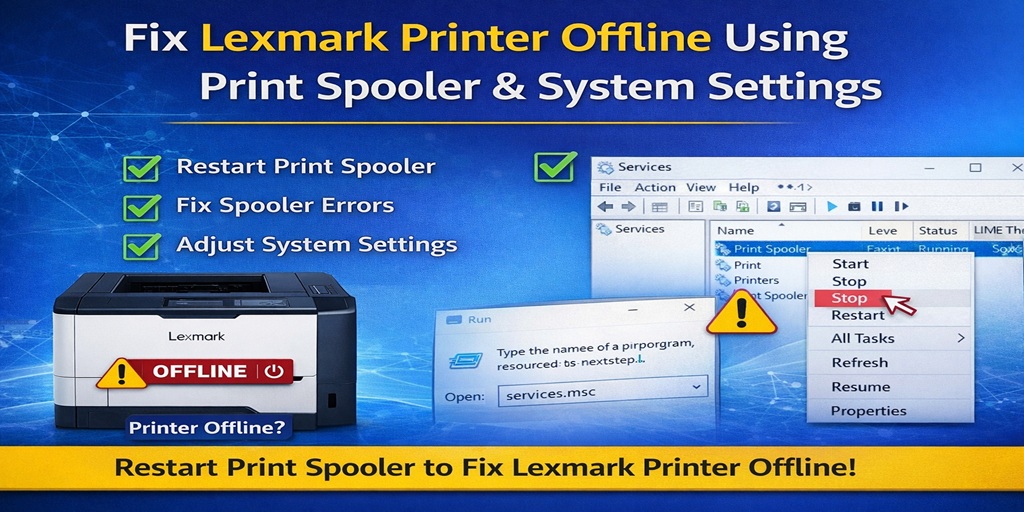
How to Restart Print Spooler to Fix Lexmark Printer Offline Issue
This is the most effective fix for silent offline problems.
Method 1: Restart via Services (Recommended)
- Press Win + R
- Type: services.msc
- Press Enter
- Find Print Spooler
- Right-click → Click:
- Stop
- Wait 5 seconds
- Start
👉 This refreshes the entire printing system.
Method 2: Restart Using Command Prompt (Advanced)
- Open Command Prompt (Admin)
- Run:
net stop spooler
net start spooler
👉 Useful if services panel is not responding.
Method 3: Restart via Task Manager
- Press Ctrl + Shift + Esc
- Go to Services tab
- Find Spooler
- Restart it
What Causes Print Spooler Errors in Lexmark Printers?
Understanding this helps prevent future issues.
🔴 1. Corrupt Print Jobs
A stuck or damaged file can freeze the spooler.
🔴 2. Outdated or Conflicting Drivers
Drivers that don’t match Windows version cause spooler crashes.
🔴 3. Too Many Pending Jobs
Large queues overload the system.
🔴 4. Windows Updates
Updates sometimes break spooler services.
🔴 5. Background Service Conflicts
Other apps interfere with printing services.
🔴 6. Permission Issues
System restrictions prevent spooler from running properly.
🛠️ Fix Print Spooler Errors (Permanent Solution)
Follow this if the problem keeps coming back.
Step 1: Clear Print Queue Manually
- Press Win + R
- Type:
%systemroot%\System32\spool\PRINTERS
- Delete all files inside
👉 These are stuck print jobs.
Step 2: Restart Spooler Again
Use the earlier method.
Step 3: Update Printer Drivers
- Download latest Lexmark driver
- Install fresh version
Step 4: Check Windows Services
Ensure these are running:
- Print Spooler
- RPC (Remote Procedure Call)
Lexmark Printer Offline but No Error Message — How to Troubleshoot
This is one of the most confusing cases.
Everything looks fine… but nothing prints.
Why This Happens:
- Spooler is frozen
- Queue is stuck in background
- System lost communication silently
- Driver glitch
Step-by-Step Fix
✅ Step 1: Restart Spooler
Always start here.
✅ Step 2: Clear Hidden Queue
Even if queue looks empty, clear it manually.
✅ Step 3: Disable Offline Mode
- Open printer queue
- Uncheck Use Printer Offline
✅ Step 4: Set Printer as Default
Ensures system sends jobs correctly.
✅ Step 5: Restart Everything
- Printer
- Computer
- Router (if WiFi printer)
👉 In most “no error” cases, this solves the issue.
⚡ Quick Fix Summary (Save This)
✔ Restart print spooler
✔ Clear print queue
✔ Disable offline mode
✔ Update drivers
✔ Set default printer
🧠 Pro Tip (Advanced Stability Fix)
If spooler issues keep happening:
✔ Switch printer port to TCP/IP
✔ Avoid WSD ports
✔ Keep drivers updated
✔ Limit large print jobs
🖥️ Windows-Specific Notes
- Windows 11: More prone to spooler crashes after updates
- Windows 10: More stable but still affected by driver issues
❓ FAQs (People Also Ask Style)
1. What is print spooler in printers?
It’s a Windows service that manages print jobs and communication with the printer.
2. Why does print spooler keep stopping?
Usually due to corrupt files, driver issues, or system conflicts.
3. Can spooler errors cause printer offline status?
Yes, it’s one of the most common causes.
4. How do I fix printer offline with no error?
Restart spooler, clear queue, and reset printer settings.
5. Is restarting spooler safe?
Yes, it does not harm your system.
6. Why does my printer show offline randomly?
Often due to spooler crashes or background system errors.
7. Do I need to reinstall drivers?
Only if spooler keeps failing repeatedly.
Conclusion
If your Lexmark printer is offline with no clear reason, the print spooler is often the hidden issue.
Once you:
- Restart the spooler
- Clear the queue
- Fix system settings
👉 Your printer usually comes back online immediately.
Still facing the issue?
Try the manual queue cleanup + spooler restart first. If needed, tell me your error symptoms and I’ll help you diagnose it step by step.







