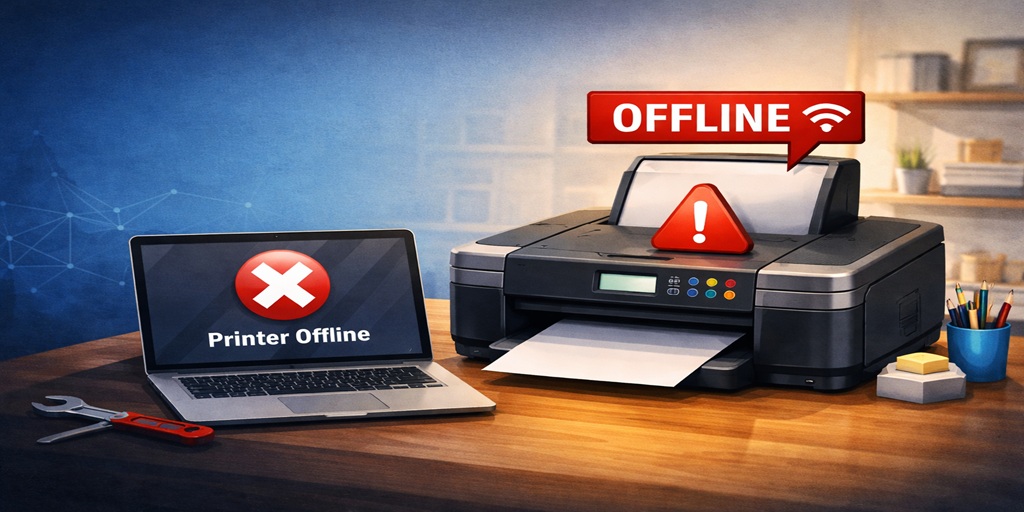
If you’re wondering why is my hp printer offline but connected to wifi, you’re not alone. This confusing issue happens when your printer appears connected but fails to communicate with your computer properly during printing tasks.
Table of Contents
ToggleI had a client in San Diego last month who said something I hear all the time:
“My printer is connected to WiFi… but it still says offline.”
That situation confuses people because everything looks fine. The network is connected. The printer shows ready. But when you try to print, nothing happens.
After 8+ years handling printer issues across U.S. homes and small offices, I can tell you this clearly, this isn’t a hardware problem. It’s a communication breakdown between your system and printer.
👉 If you want a full step-by-step breakdown, follow this guide:
Fix HP printer offline issue properly
Let’s break down what’s really happening and how to fix it without wasting time.
What “Offline but Connected” Actually Means
When people search for HP Printer Offline Fix, they’re usually dealing with this exact situation.
Your printer is connected to WiFi, but your computer thinks it’s unavailable.
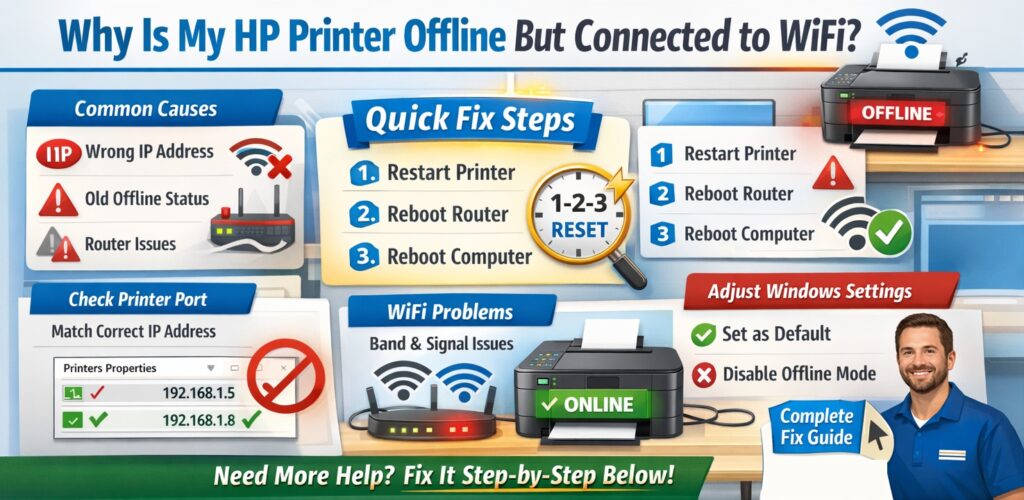
Why this happens:
- Your computer is talking to the wrong printer port
- The printer’s IP address has changed
- Windows cached an old offline status
- Background services stopped responding
- Router reassigned a new network path
In simple terms, your printer is online… but your system is looking in the wrong place.
Quick Fix That Works in Most Cases
Before trying anything complicated, do this exact reset. I use it in almost every service call.
Step-by-step reset:
- Turn off your printer
- Restart your WiFi router
- Restart your computer
- Turn printer back on
- Wait 2 minutes
Then check:
- Printer shows “Ready”
- Computer is on same WiFi network
- No VPN or guest network active
From real experience:
This alone fixes around half the cases where printers appear connected but offline.
The Real Problem: IP Address Mismatch
This is the #1 issue I see when printers are connected but offline.
What happens:
- Your router assigns a new IP address to the printer
- Your computer still tries to connect to the old one
- Result → printer shows offline
How to fix it:
- Open Devices and Printers
- Right-click your printer
- Select Printer Properties
- Go to Ports tab
- Check the correct IP address
If it doesn’t match, update it or reinstall the printer.
👉 If you’re unsure how to do this, follow this guide:
Resolve HP printer not printing issue
Windows Settings That Cause Offline Issues
Sometimes the problem isn’t the network, it’s Windows itself.
Check these settings:
1. Set Printer as Default
- Control Panel → Devices
- Right-click printer → Set as default
2. Disable Offline Mode
- Open print queue
- Click Printer menu
- Uncheck “Use Printer Offline”
3. Restart Print Spooler
- Press Windows + R
- Type services.msc
- Restart Print Spooler
These steps are essential for any HP Printer Offline Fix.
WiFi Issues That Look Like Printer Problems
In many homes I visit, especially in cities like Dallas and Phoenix, the issue isn’t the printer, it’s the network.
Common WiFi problems:
- Dual-band routers switching between 2.4 GHz and 5 GHz
- Mesh WiFi systems confusing device routing
- Weak signal due to distance or walls
- Too many connected devices
What actually works:
- Keep printer within 6–10 feet of router
- Connect both devices to same WiFi band
- Avoid guest networks
- Restart router before reconnecting
Real case:
A client in Dallas had everything set correctly, but the printer kept going offline. The issue? Router switching bands automatically. Locked it to one band, problem solved.
Advanced Fix (When Basic Steps Don’t Work)
If the issue keeps coming back, here’s what I do during service visits.
Clean reinstall method:
- Remove printer from system
- Uninstall drivers
- Restart computer
- Download fresh drivers
- Reinstall setup
Optional (but powerful fix):
- Assign static IP to printer
- Prevent router from changing it
This stops the system from losing connection again.
Technician Insight
Working across cities like Chicago, Houston, and San Diego, I’ve noticed one pattern.
Most people think the printer is faulty. It’s not.
What actually causes the issue:
- Network inconsistency
- System caching old data
- Router behavior changing connections
My approach on-site:
- Reset network and printer
- Reinstall clean setup
- Lock connection to one band
- Verify connection before leaving
Real example:
In Houston, a client’s printer went offline every morning. The cause? Router resetting overnight and assigning a new IP. Static IP fixed it permanently.
One Small Setting That Fixes Big Problems
Even after everything is correct, printers can still show offline.
Here’s what I always check:
- Open Devices and Printers
- Right-click printer
- Go to Properties
- Check Ports tab
- Ensure correct port is selected
This small step is often overlooked.
FAQ
Why is my HP printer offline but connected to WiFi?
This usually happens due to IP address mismatch or incorrect system settings. Your printer is online, but your computer is not communicating with it properly.
What is the fastest way to fix HP printer offline issue?
Restart your router, printer, and computer, then reconnect everything. This resolves most issues quickly.
Why does my printer keep going offline randomly?
This often happens when the router assigns a new IP address. Setting a static IP prevents this issue.
Does WiFi band affect printer connection?
Yes. If your printer and computer are on different bands (2.4 GHz vs 5 GHz), it can cause connection issues.
Do I need to reinstall drivers every time?
No, only if the issue persists. Most problems can be fixed with network and settings adjustments.
Conclusion
If your printer is connected to WiFi but still showing offline, don’t assume something is broken. Most of the time, it’s a simple communication issue that can be fixed in minutes.
Follow the steps carefully, and if the problem keeps coming back, it’s worth fixing it properly instead of dealing with the same issue again and again.