
If your Lexmark printer keeps going offline even after basic fixes, the problem usually isn’t the printer… it’s the network.
Table of Contents
ToggleThis is where most guides stop. But if you want a permanent fix, you need to go a bit deeper. Things like dynamic IP changes, wrong port settings, or poor network communication can silently disconnect your printer again and again.
In this guide, I’ll walk you through advanced network fixes that actually solve the issue long term. No fluff. Just what works.
Why Lexmark Printers Go Offline on Network
Before jumping into fixes, here’s what’s really happening behind the scenes.
- Your router assigns a dynamic IP that changes over time
- Windows connects using WSD (Web Services for Devices), which is unstable
- Your system loses communication with the printer
- Result → Printer shows offline
The fix? Lock things down. Make your printer stable on the network.
How to Assign Static IP to Lexmark Printer to Prevent Offline Issue
This is one of the most important fixes. If your printer IP keeps changing, your computer won’t find it consistently.
Step-by-Step to Set Static IP
- On your Lexmark printer, go to Settings / Network Setup
- Open TCP/IP Settings
- Note your current IP address (e.g., 192.168.1.25)
- Change IP Assignment from Automatic (DHCP) to Manual
- Enter:
- IP Address (choose a fixed one, like 192.168.1.200)
- Subnet Mask (usually 255.255.255.0)
- Gateway (your router IP, e.g., 192.168.1.1)
- Save settings and restart the printer
Why This Works
Now your printer always stays at the same address. Your computer knows exactly where to find it, every time.
No more random offline issues after router restarts.
How to Change Lexmark Printer from WSD to TCP/IP Port
This is another big one. WSD sounds fancy, but honestly… it’s unreliable.
Switching to a Standard TCP/IP port makes your connection direct and stable.
Step-by-Step to Switch Port
- Open Control Panel → Devices and Printers
- Right-click your Lexmark printer
- Click Printer Properties
- Go to the Ports tab
- Click Add Port
- Select Standard TCP/IP Port
- Click New Port
Now enter your printer’s static IP (the one you just set).
- Finish setup and select the new port
- Click Apply
Important Tip
After switching, uncheck the old WSD port. Otherwise, Windows may still try to use it.
Why TCP/IP is Better
- Direct communication with printer
- No dependency on Windows discovery
- More stable over time
- Preferred method for businesses
Once you switch, you’ll notice fewer disconnects.
How to Ping a Lexmark Printer to Check Connection Status
Now let’s test if your printer is actually reachable on the network.
This is a simple but powerful diagnostic step.
What is Ping?
Ping sends a signal from your computer to the printer and checks if it responds.
If it responds → connection is good
If not → there’s a network issue
Steps to Ping Your Printer
- Press Windows + R
- Type cmd and press Enter
- In Command Prompt, type:
ping 192.168.1.200
(Replace with your printer’s IP)
- Press Enter
What Results Mean
✅ Reply from 192.168.1.200
→ Printer is online and reachable
❌ Request timed out
→ Printer is not responding
What to Do If Ping Fails
If your ping test fails, here’s what to check:
- Printer is powered ON
- Connected to the same WiFi network
- No firewall blocking communication
- IP address is correct
Sometimes, restarting both the router and printer fixes this instantly.
Combine All Fixes for Best Results
Here’s the truth most people don’t realize.
No single fix is enough.
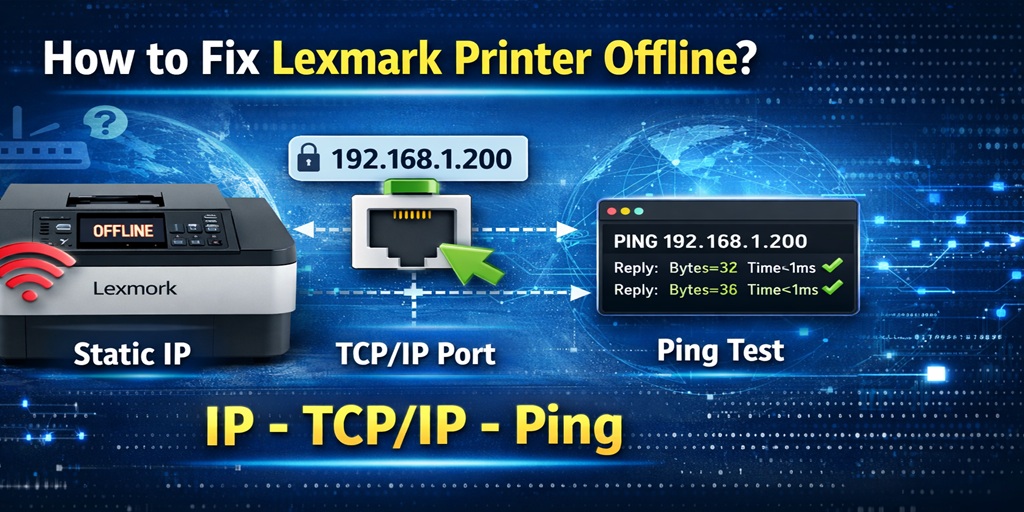
To fully solve Lexmark printer offline issues, you need to combine:
- Static IP (prevents address changes)
- TCP/IP port (stable communication)
- Ping test (confirms connection)
When all three are set correctly, your printer stays online consistently.
Real-World Tip (From Experience)
I’ve seen this many times.
Someone fixes the offline issue temporarily, but it comes back after a few days. Why? Because the IP changed again or WSD kicked in.
Once you lock the IP and switch to TCP/IP, the issue usually disappears for good.
Quick Checklist (Save This)
If your Lexmark printer goes offline again, run through this:
- Is the printer using a static IP?
- Is it connected via TCP/IP port (not WSD)?
- Does ping return a response?
If all three are correct, your printer should stay online.
Final Thoughts
The Lexmark printer offline problem isn’t always about the printer. Most of the time, it’s the network setup.
Once you take control of IP settings and communication methods, things become stable. No more random disconnects. No more guessing.
It takes a few extra minutes to set up properly, but it saves hours of frustration later.
FAQs – Advanced Lexmark Printer Offline Fix
1. Why does my Lexmark printer keep going offline on WiFi?
This usually happens due to dynamic IP changes or unstable WSD connections. Setting a static IP and using TCP/IP fixes it.
2. What is the difference between WSD and TCP/IP ports?
WSD relies on Windows discovery and can be unstable. TCP/IP uses direct communication, making it more reliable.
3. How do I know if my printer IP has changed?
Check your printer’s network settings or print a configuration page. If the IP is different, your system may lose connection.
4. Is ping necessary for fixing printer issues?
It’s not required, but it’s very useful. Ping helps confirm whether your printer is reachable on the network.
5. Can firewall settings cause offline issues?
Yes, firewalls can block communication between your computer and printer. Allowing printer traffic can fix it.
6. Will these fixes work for all Lexmark models?
Yes, these network-level fixes apply to most Lexmark printers using WiFi or Ethernet connections.







