
If your HP DeskJet keeps going offline, you’re probably tired of restarting it again and again. It works for a few hours. Then suddenly, Windows says “Offline.” No warning. No clear reason.
Table of Contents
ToggleThis isn’t random. And it’s usually not a hardware failure.
At Printer Offline Fix, we’ve handled hundreds of recurring HP DeskJet offline cases. In most situations, the root cause is dynamic IP address changes — and the permanent solution is configuring a static IP properly.
Let’s break it down clearly.
Why Does My HP DeskJet Keep Going Offline?
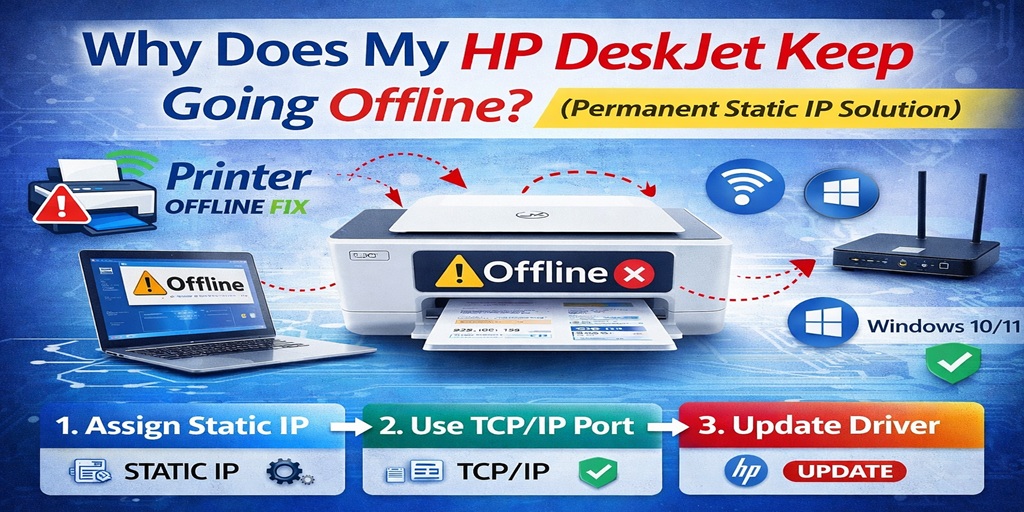
Your HP DeskJet keeps going offline because your router automatically changes the printer’s IP address. Windows continues trying to communicate using the old IP address, which causes repeated offline errors. Assigning a static IP and switching to a Standard TCP/IP port permanently resolves the issue.
Now let’s explain why this happens.
What Causes HP DeskJet to Go Offline Repeatedly?
Most recurring offline problems are caused by:
- Dynamic IP address changes
- WSD port configuration
- Outdated HP drivers
- Windows 10 or Windows 11 updates
- Weak WiFi signal
- Printer sleep mode
But out of all these, IP address changes are the most common.
What Is a Dynamic IP Address?
Most home and office routers automatically assign IP addresses to devices. This system is called DHCP.
Every time your printer:
- Restarts
- Disconnects from WiFi
- Router reboots
- Power flickers
It may receive a new IP address.
Your computer still remembers the old one.
So even though the HP DeskJet is connected to WiFi, Windows cannot locate it — and it shows offline.
That’s why the problem keeps coming back.
Why Restarting the Printer Only Works Temporarily
When you restart:
- Printer reconnects
- Windows refreshes connection
- Printing works
But the next time the router refreshes the IP, the cycle repeats.
Restarting doesn’t fix the configuration.
It just temporarily resets communication.
Permanent Static IP Solution for HP DeskJet Offline
Here’s how to stop your HP DeskJet from going offline permanently.
Step 1: Find Your Printer’s Current IP Address
You can:
- Print a Network Configuration Page
- Check router device list
- Use HP Smart app
Note the current IP address.
Step 2: Assign a Static IP Address
In your printer’s network settings:
- Change IP configuration from Automatic (DHCP) to Manual
- Enter a fixed IP address (for example: 192.168.1.150)
- Save settings
Make sure the IP is within your router range but not already assigned to another device.
This prevents the printer from changing its IP in the future.
Step 3: Switch from WSD to Standard TCP/IP Port
Many HP DeskJet printers use WSD ports by default.
WSD is less stable and often causes HP DeskJet offline errors.
To fix this:
- Open Control Panel
- Go to Devices and Printers
- Right-click HP DeskJet → Printer Properties
- Go to Ports tab
- Add Port → Standard TCP/IP
- Enter the new static IP
This ensures Windows always communicates with the correct address.
Step 4: Update HP DeskJet Driver
Outdated drivers can also trigger recurring offline issues.
Download the latest HP DeskJet driver from the official HP website and reinstall it.
This is especially important for Windows 11 users.
HP DeskJet Offline But Connected to WiFi
This is the classic sign of an IP mismatch.
Printer shows WiFi connected.
Router works.
Internet works.
But Windows says offline.
If this happens, it’s almost always:
- IP conflict
- WSD port issue
- Driver mismatch
Static IP + TCP/IP port configuration fixes it in most cases.
HP DeskJet Keeps Going Offline After Restart
If the printer goes offline every time you restart your computer, the issue is usually:
- Windows reconnecting before printer
- Spooler startup delay
- DHCP IP refresh
After assigning static IP and configuring TCP/IP port, this problem typically disappears.
Does Windows 10 or Windows 11 Cause HP DeskJet Offline Errors?
Yes, sometimes.
Major Windows updates can:
- Reset printer ports
- Replace compatible drivers
- Modify firewall settings
If your HP DeskJet started going offline after a Windows update, reinstalling the driver and verifying port configuration is important.
Windows 11 is stricter with network security, so correct configuration matters even more.
Is HP DeskJet Offline a Hardware Problem?
In most cases, no.
From real-world troubleshooting at Printer Offline Fix:
- Around 60% of recurring HP DeskJet offline issues are IP-related
- 20% are driver conflicts
- 10% are spooler issues
- 10% are WiFi instability
Actual hardware failure is rare.
Replacing the printer usually doesn’t solve the underlying network configuration issue.
Additional Tips to Prevent Offline Errors
To maintain stable connection:
✔ Keep router firmware updated
✔ Use 2.4GHz WiFi for better range
✔ Disable aggressive sleep mode on printer
✔ Keep Windows updated
✔ Ensure strong WiFi signal
Small network adjustments can improve reliability significantly.
When to Seek Professional Help
If:
- Printer keeps going offline after static IP
- Multiple computers cannot detect printer
- You suspect network conflicts
Structured troubleshooting may be required.
Remote configuration support can resolve IP conflicts and port issues quickly without replacing hardware.
Final Thoughts
If you’ve been wondering, why does my HP DeskJet keep going offline, the answer is usually simple: communication breakdown caused by dynamic IP addressing.
The permanent solution is:
- Assign static IP
- Switch to Standard TCP/IP port
- Install updated driver
Once configured properly, your HP DeskJet should stay online consistently instead of disconnecting every few days.
Most recurring offline issues are not hardware failures. They’re configuration problems.
Fix the setup once — and you won’t need to keep troubleshooting the same error again.







