
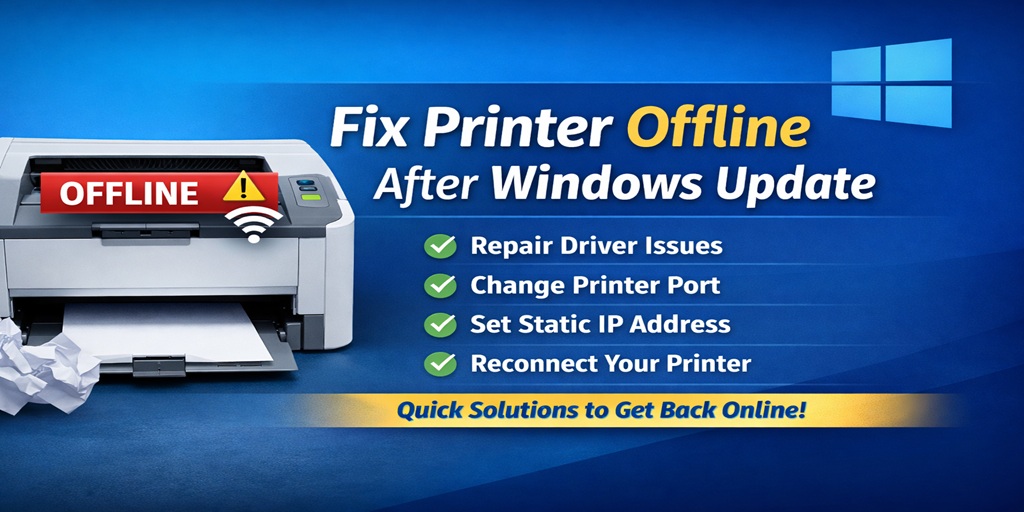
If your printer suddenly shows offline after a Windows update, you’re not alone. This happens more often than most people realize. One day everything works fine. The next day, after an automatic Windows update, your printer refuses to print, shows “offline,” or sends jobs that never complete.
Table of Contents
ToggleThe frustrating part? Your Wi-Fi is connected. The printer lights look normal. Sometimes the blue wireless light is solid, but Windows still says the printer is unavailable.
This guide will show you exactly how to fix printer offline after Windows update using proven steps that work on Windows 10 and Windows 11.
Why Does Printer Offline After Windows Update Happen?
Windows updates often modify:
- Printer drivers
- Network settings
- Default printer configurations
- Print spooler behavior
- Port settings (WSD vs TCP/IP)
When that happens, your system may:
- Replace your working driver
- Change your printer port
- Disconnect network mapping
- Set printer to “Use Offline” mode
That’s why the issue appears right after an update.
Step 1: Restart Everything (Simple But Effective)
Before doing anything advanced, restart:
- Computer
- Printer
- Router
Then wait 2–3 minutes and try printing again.
Sometimes Windows update changes network services that require a full reset.
Step 2: Check If Windows Set Printer to Offline Mode
This is common after updates.
- Open Control Panel
- Click Devices and Printers
- Double-click your printer
- Click the Printer menu
- Make sure Use Printer Offline is unchecked
- Also ensure Pause Printing is unchecked
If it was checked, uncheck it and test again.
Step 3: Change Printer Port from WSD to TCP/IP
This is one of the biggest causes of printer offline after Windows update.
Windows often switches printer ports to WSD (Web Services for Devices). WSD connections fail frequently after updates.
Here’s how to fix it:
- Go to Control Panel → Devices and Printers
- Right-click your printer → Printer Properties
- Open the Ports tab
- If it shows something like WSD-xxxxxxx, that’s the issue
- Click Add Port
- Select Standard TCP/IP Port
- Enter your printer’s IP address
- Finish setup
- Apply changes
This creates a direct connection instead of auto-discovery.
Most users report this permanently fixes the printer offline after Windows update problem.
Step 4: Set a Static IP Address
If your router assigns dynamic IP addresses, Windows may lose connection after updates.
To set static IP:
- Print network configuration page from printer
- Find IPv4 address (example: 192.168.1.25)
- Enter that IP in a web browser
- Open printer network settings
- Change IP configuration to Manual / Static
- Save changes
Now your printer will always use the same IP address.
This prevents future offline issues.
Step 5: Reinstall Printer Driver Properly
Sometimes Windows installs a generic driver that breaks functionality.
Clean reinstall method:
- Remove printer from Devices and Printers
- Go to Device Manager
- Uninstall printer drivers completely
- Restart computer
- Download latest driver from manufacturer website
- Install manually
Avoid using “Add a printer” auto-detect feature. Manual installation gives better control.
This is especially important if you’re facing:
- HP printer offline after Windows update
- Canon printer offline after update
- Brother printer not responding
Step 6: Restart Print Spooler Service
Windows update can interrupt spooler services.
Fix it like this:
- Press Windows + R
- Type services.msc
- Find Print Spooler
- Right-click → Restart
If needed:
- Stop service
- Start service again
This clears stuck print jobs and refreshes communication.
Step 7: Check Network Adapter Power Settings
Windows may enable power-saving features after updates.
- Open Device Manager
- Click Network Adapters
- Right-click your Wi-Fi adapter
- Click Properties
- Open Power Management
- Uncheck:
“Allow the computer to turn off this device to save power”
This prevents network drops that trigger offline status.
Step 8: Roll Back Windows Update (If Issue Started Immediately)
If your printer worked perfectly before the update and stopped right after:
- Go to Settings → Update & Security
- Click View update history
- Click Uninstall updates
- Remove most recent update
- Restart system
This can restore previous driver compatibility.
Only use this if other fixes fail.
Common Scenarios After Windows Update
Printer Connected But Offline
Usually port or driver issue.
Printer Prints Days Later
Spooler queued jobs and printer reconnects later.
Wi-Fi Light On But Not Printing
Network mapping issue, not hardware.
USB Printer Offline After Update
Windows replaced USB driver.
How to Prevent Printer Offline After Windows Update
To avoid repeating this issue:
- Use static IP address
- Avoid WSD ports
- Disable automatic driver updates
- Keep printer firmware updated
- Maintain latest manufacturer drivers
Prevention saves hours of frustration later.
Windows 10 vs Windows 11 Differences
Both systems face similar issues. However:
- Windows 11 updates are more aggressive with driver replacement
- Windows 10 sometimes resets default printer
The fix steps remain the same for both versions.
When to Contact Support
Contact manufacturer support if:
- Printer won’t power on
- Printer won’t connect to Wi-Fi at all
- Printer doesn’t get IP address
- Hardware lights indicate error
If the printer connects to Wi-Fi but shows offline, it’s almost always a software issue.
Final Thoughts
The printer offline after Windows update issue is rarely a hardware problem. It’s usually caused by:
- Port switching to WSD
- Driver replacement
- Network reconfiguration
- Print spooler interruption
The most reliable fix is switching from WSD to TCP/IP and setting a static IP address.
Once configured properly, your printer should stay online consistently, even after future Windows updates.
If you follow these steps carefully, you won’t need to reinstall your printer every time Windows decides to “improve” something.
And honestly, once the port and IP are set correctly, the problem usually disappears for good.






2 Comments