
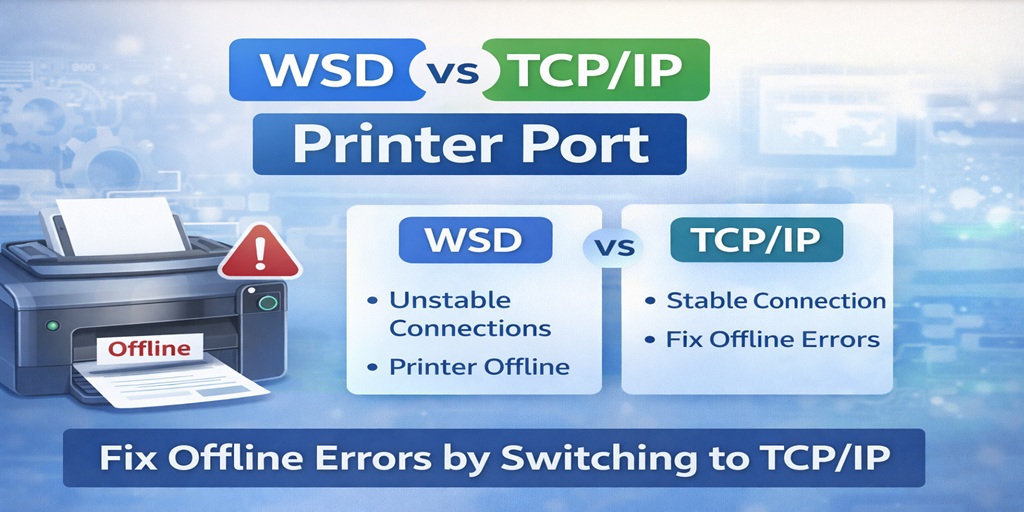
If your printer keeps showing offline even though it’s connected to Wi-Fi, the issue might not be the printer at all. It may be the printer port.
Table of Contents
ToggleMany Windows systems automatically install network printers using a WSD printer port. While convenient, WSD often causes unstable connections, recurring offline errors, and communication failures.
Switching to a Standard TCP/IP printer port is one of the most effective permanent fixes for recurring printer offline problems.
In this guide, you’ll learn:
- What a WSD printer port is
- What a TCP/IP printer port does
- The difference between WSD vs TCP/IP
- Why WSD causes printer offline errors
- How to switch from WSD to TCP/IP step-by-step
- When you should (and shouldn’t) change printer ports
If you’re serious about fixing printer offline issues permanently, this is one of the most important things you can understand.
What Is a WSD Printer Port?
WSD stands for Web Services for Devices.
When you add a printer using the “Add a Printer” feature in Windows, the system often automatically assigns it a WSD port.
A WSD printer port:
- Automatically detects printers on the network
- Uses dynamic communication
- Relies on network discovery services
- Is commonly used in home setups
It sounds convenient — and it is — but it has weaknesses.
Many users experiencing recurring printer offline errors discover their printer is using a WSD port.
Common signs of WSD port problems:
- Printer randomly shows offline
- Printer works after reinstalling
- Printer prints days later unexpectedly
- Printer goes offline after sleep mode
- Printer offline after router restart
WSD is not inherently broken — it’s just less stable than TCP/IP in many real-world environments.
What Is a Standard TCP/IP Printer Port?
A Standard TCP/IP printer port uses the printer’s direct IP address to communicate.
Instead of relying on network discovery, your computer connects directly to the printer’s assigned IP address.
A TCP/IP printer port:
- Uses a fixed IP address
- Creates a direct communication path
- Is more stable on business networks
- Prevents most recurring offline issues
This is why many IT professionals prefer TCP/IP over WSD.
When configured properly, TCP/IP ports rarely cause printer offline errors.
WSD vs TCP/IP – What’s the Difference?
Here’s a simplified comparison:
|
Feature |
WSD Port |
TCP/IP Port |
|
Setup |
Automatic |
Manual |
|
Stability |
Moderate |
High |
|
Uses IP Address |
Dynamic |
Static |
|
Offline Errors |
More common |
Rare |
|
Best For |
Simple home use |
Stable network printing |
Key Difference
WSD depends on Windows network discovery.
TCP/IP depends on direct IP communication.
When network discovery fails, WSD fails.
When IP changes, WSD often fails.
TCP/IP avoids both problems.
Why WSD Port Causes Printer Offline Errors
This is where most problems start.
1️⃣ IP Address Changes
Routers assign IP addresses dynamically (DHCP). When your printer’s IP changes after a router restart, WSD may lose track of it.
Your computer then shows:
Printer Offline
Switching to TCP/IP and assigning a static IP prevents this.
2️⃣ Printer Sleep Mode Issues
Some printers enter deep sleep mode. WSD sometimes fails to wake the printer properly, even if the Wi-Fi light is solid.
TCP/IP tends to re-establish communication more reliably.
3️⃣ Windows Updates Reset Port Settings
Major Windows 10 or Windows 11 updates sometimes reinstall drivers or reconfigure ports.
WSD ports are more likely to break after updates.
4️⃣ Network Discovery Problems
If network discovery is disabled or blocked by firewall settings, WSD ports may fail.
TCP/IP ports do not rely on discovery services.
5️⃣ Router Changes
If you:
- Reset your router
- Change Wi-Fi password
- Install a mesh system
WSD printers often go offline.
TCP/IP with static IP prevents that instability.
How to Check If Your Printer Is Using WSD
Follow these steps:
- Open Control Panel
- Click Devices and Printers
- Right-click your printer
- Select Printer Properties
- Click the Ports tab
- Look at the checked port
If it says:
WSD-xxxxxx
Your printer is using a WSD port.
If it says:
Standard TCP/IP Port
You are already using the more stable configuration.
How to Switch from WSD to TCP/IP (Step-by-Step Guide)
This is the most important section.
Follow carefully.
Step 1: Find Your Printer’s IP Address
You can find it by:
- Printing a network configuration page
- Checking router connected devices
- Viewing it on the printer display
Example IP:
192.168.1.25
Step 2: Add a New Standard TCP/IP Port
- Go to Control Panel
- Open Devices and Printers
- Right-click your printer
- Click Printer Properties
- Go to Ports
- Click Add Port
- Select Standard TCP/IP Port
- Click New Port
- Enter your printer’s IP address
- Complete the wizard
Step 3: Select the New Port
After adding it:
- Go back to Ports tab
- Check the new TCP/IP port
- Uncheck the WSD port
- Click Apply
Step 4: Test Print
Print a test page.
If configured correctly, your printer should:
- Appear online
- Print instantly
- Stay online
Should You Assign a Static IP Address?
Yes — if you want permanent stability.
Without static IP:
- Router restart = new IP
- New IP = communication mismatch
- Mismatch = printer offline
To prevent this:
- Log into your router
- Reserve the printer’s IP
- Assign it permanently
Static IP + TCP/IP port = strongest combination.
When NOT to Switch from WSD
There are a few exceptions.
Do NOT switch if:
- Printer is connected via USB
- Printer is not network-based
- You have no recurring offline issues
- You are using a simple temporary setup
If everything works consistently, there’s no need to change.
WSD vs TCP/IP for Windows 10 and Windows 11
Windows 10 and 11 often default to WSD.
After updates:
- Drivers may reinstall
- Ports may reset
- Printer may revert to WSD
If your printer went offline after a Windows update, check the port first.
This alone fixes many recurring issues.
Does Switching to TCP/IP Fix Printer Offline Permanently?
In many cases, yes.
Especially when combined with:
- Static IP address
- Correct printer driver
- Disabled bi-directional support (if needed)
However, deeper issues such as driver corruption or network firewall restrictions may require advanced troubleshooting.
Frequently Asked Questions
Is WSD better than TCP/IP?
WSD is easier to set up but less stable. TCP/IP is more reliable for long-term network printing.
Why does Windows use WSD by default?
Because it allows automatic detection without manual IP setup.
Can I use both WSD and TCP/IP?
You can technically have both ports installed, but only one should be active for stable printing.
Will switching ports void printer warranty?
No. Changing ports is a Windows configuration change and does not affect printer warranty.
Why does my printer keep going offline even after reinstalling?
Because reinstalling often keeps the WSD port active. The root cause remains unchanged.
Still Having Printer Offline Problems?
If switching from WSD to TCP/IP does not fix your issue, deeper causes may be involved:
- Driver conflicts
- Print spooler corruption
- Network firewall blocks
- Router-level configuration issues
At Printer Offline Fix, we diagnose these issues daily and resolve them quickly through secure remote support.
You don’t need a new printer.
You just need the right configuration.
Final Thoughts
Understanding WSD vs TCP/IP printer port differences can save you hours of frustration.
Many recurring printer offline errors are not hardware failures — they are configuration issues.
If your printer:
- Keeps going offline
- Works only after reinstalling
- Fails after Windows updates
- Stops after router restart
Switching from WSD to TCP/IP may be the permanent solution.
Take control of your printer configuration — and stop letting unstable ports interrupt your work.







6 Comments