
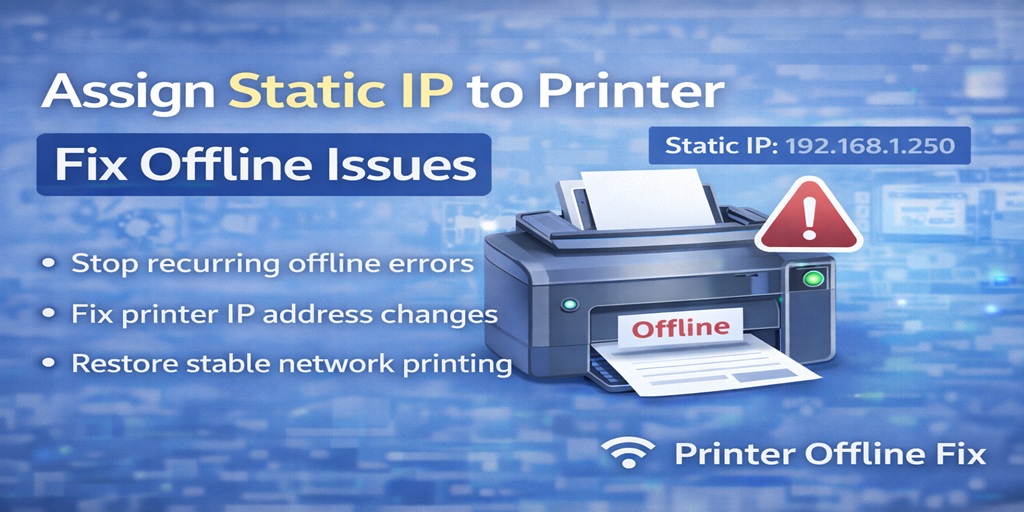
If your printer keeps going offline every time you restart your router or computer, the problem may not be your printer at all. It could be your IP address.
Table of Contents
ToggleMany recurring printer offline issues happen because the printer’s IP address keeps changing. When that happens, your computer tries to connect to an old address, fails to find the printer, and shows the dreaded message:
The permanent solution in many cases is simple:
Assign a static IP to your printer.
I’m Mark Thomson, a printer support specialist with over 10 years of experience resolving printer offline and connectivity issues. At Printer Offline Fix, one of the most common root causes we diagnose is dynamic IP conflicts.
Let’s break this down clearly and fix it properly.
What Is a Static IP Address?
Every device on your network has an IP address. This includes:
- Computers
- Printers
- Routers
- Smart TVs
- Phones
Most home routers use DHCP (Dynamic Host Configuration Protocol). This means your router automatically assigns IP addresses to devices.
The problem?
Dynamic IP addresses can change.
When your printer’s IP changes, your computer may still be looking for the old one.
Result:
Printer says offline.
A static IP address stays the same permanently.
Once assigned, your computer always knows exactly where to find the printer.
Why Dynamic IP Causes Printer Offline Errors
Let’s say:
Your printer’s IP is 192.168.1.25 today.
You restart your router.
Now the printer gets:
192.168.1.37
But your computer is still trying to print to:
192.168.1.25
The printer appears offline.
This is why users often say:
- My printer is offline after router restart
- Printer keeps going offline randomly
- Printer works for a few days then stops
It’s not random.
It’s IP reassignment.
Assigning a static IP prevents this completely.
Signs You Need a Static IP Printer Setup
You likely need a static IP if:
- Printer goes offline after router restart
- Printer goes offline after power outage
- Printer works after reinstalling but fails later
- Printer only works for a few days
- Printer offline after switching WiFi
If this sounds familiar, static IP configuration is probably your permanent fix.
How to Find Your Printer’s Current IP Address
Before assigning a static IP, you need to know the printer’s current IP.
There are three common ways to find it.
Method 1: Print Network Configuration Page
Most printers allow you to:
- Go to Settings
- Select Network
- Print Network Configuration Page
This page will display the current IP address.
Method 2: Check Router Connected Devices
- Log into your router
- Open “Connected Devices”
- Find your printer
- Note the IP address
Method 3: Check from Windows
- Open Control Panel
- Devices and Printers
- Right-click your printer
- Printer Properties
- Ports tab
If using TCP/IP, the IP will be listed there.
How to Assign Static IP to Printer (Router Method – Recommended)
This is the safest and easiest way.
Instead of manually changing the printer, you tell the router to always assign the same IP to that printer.
Step-by-Step Static IP Setup Instructions
- Log into your router (usually 192.168.1.1)
- Enter router username and password
- Find DHCP settings
- Look for “Address Reservation” or “Static Lease”
- Select your printer device
- Assign its current IP permanently
- Save settings
- Restart printer
Now your printer will always use the same IP.
This prevents recurring offline issues.
Alternative Method: Manually Set Static IP on Printer
Some printers allow manual IP configuration directly from the control panel.
Steps vary by brand, but generally:
- Go to Network Settings
- Select Manual IP Setup
- Enter IP address
- Enter Subnet Mask
- Enter Gateway (router IP)
- Save
Be careful to choose an IP outside your router’s dynamic range.
If unsure, router reservation method is safer.
Important: Update Windows Port After Static IP Change
After assigning a static IP, confirm Windows is pointing to the correct address.
- Open Devices and Printers
- Right-click printer
- Printer Properties
- Ports tab
- Select Standard TCP/IP port
- Confirm correct IP address
If incorrect, add a new TCP/IP port using the updated IP.
This step is critical.
Static IP + TCP/IP Port = Permanent Stability
Assigning static IP is only half the fix.
For maximum stability:
- Use Standard TCP/IP port
- Avoid WSD port
- Disable unused ports
Dynamic IP + WSD = unstable combination.
Static IP + TCP/IP = professional configuration.
Printer Offline After Router Restart – Why Static IP Fixes It
Every time your router restarts:
Dynamic IP devices get reassigned.
Without static IP:
Printer may receive new address.
Computer cannot find printer.
Printer shows offline.
With static IP:
Printer always keeps same address.
No confusion.
No offline errors.
Static IP for Business vs Home Users
For home users:
Static IP prevents recurring offline frustration.
For business users:
Static IP is essential.
In office environments:
- Multiple devices print
- Routers restart
- Network traffic fluctuates
Without static IP, offline issues are almost guaranteed over time.
Common Mistakes When Setting Static IP
Avoid these errors:
- Assigning IP already in use
- Choosing IP outside network range
- Forgetting to update Windows port
- Leaving WSD port active
If printer still says offline after static IP assignment, check port settings.
Frequently Asked Questions
Does assigning a static IP fix printer offline permanently?
In most cases, yes. Especially when combined with TCP/IP port configuration.
Can I assign static IP without router access?
Some printers allow manual IP setup, but router-based reservation is safer and more reliable.
Will static IP slow down my network?
No. Static IP only affects how devices are identified, not speed.
Why does my printer IP keep changing?
Because your router is using DHCP dynamic assignment.
Should every printer use static IP?
For stable long-term printing, yes.
When Static IP Alone Isn’t Enough
Sometimes deeper issues exist:
- Driver corruption
- Firewall blocking communication
- Incorrect port type
- Print Spooler service issues
If static IP doesn’t solve the problem, the next step is checking port configuration (WSD vs TCP/IP).
Why Most People Reinstall Instead of Fixing the Root Cause
Reinstalling temporarily works because:
Windows re-detects the printer’s new IP.
But when IP changes again:
Offline returns.
Without static IP, the cycle continues.
That’s why understanding configuration is more important than reinstalling.
Final Thoughts
If you’re tired of asking:
- Why is my printer offline again?
- Why does my printer go offline after router restart?
- Why does my printer work for a few days then stop?
The issue is likely dynamic IP reassignment.
Assigning a static IP to your printer is one of the most effective long-term fixes available.
It transforms unstable home network printing into reliable, consistent communication.
At Printer Offline Fix, this configuration change alone resolves a large percentage of recurring offline cases.
Stop reinstalling.
Fix the root cause.
Your printer can stay online permanently — it just needs a stable address.






6 Comments